
My notesPractical Power BI tips
ALLSELECTED in DAX: your denominator follows the user's selection
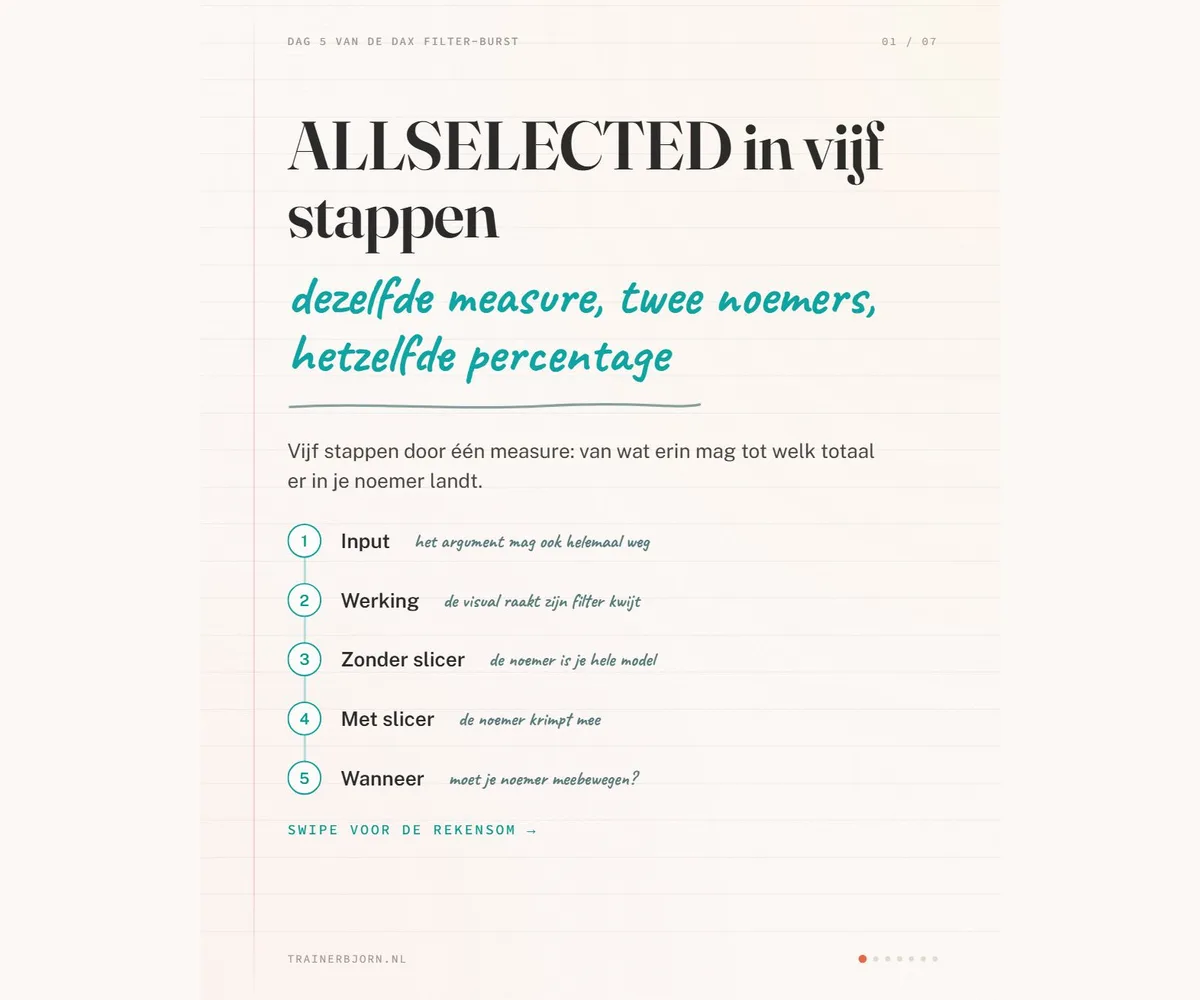
Yesterday’s post was about ALLEXCEPT, the function that holds one grouping in place while every other filter falls away. Today closes out the DAX filter burst with the function that keeps the opposite in place: not one column, but everything your user has clicked in the report.
ALLSELECTED is where most “my percentage stopped matching after I clicked the slicer” questions in the Fabric Community end up. The formula does what it says, but the name sets up an expectation the engine does not deliver.
What ALLSELECTED needs and returns
Both arguments to ALLSELECTED are optional. Call it empty, ALLSELECTED(), and you get the full visual total back. Pass columns and they need to come from the same table, the same rule as most of this week’s functions.
What it does next is small and precise. Microsoft describes the return value as the context of the query without the row and column filters the visual itself set. In plain terms: the filter the visual places on this cell gets wiped, and everything coming in from outside that visual, a slicer choice included, stays in place. The documentation states the purpose directly: ALLSELECTED exists to deliver visual totals, the total the way the visual shows it, not the total of your whole model.
The same measure without a slicer
Take a Sales table with Category on the rows and this measure:
Share of total =
DIVIDE(
    SUM(Sales[Amount]),
    CALCULATE(SUM(Sales[Amount]), ALLSELECTED(Sales[Category]))
)
Without any active selection, the numerator for Bakery reads 40,000 and the denominator lands on 100,000, so that row shows 40% and the column adds up to 100%. With nothing clicked, ALLSELECTED here behaves exactly like ALL: it returns the total of the whole table. That is exactly why the next step is where the difference shows up.
With the slicer on North
Add a slicer on Sales[Region] and click North. The numerator for Bakery drops to 10,000 and the denominator drops with it to 25,000, because the total now tracks the selection. That row lands on 40% again, and your column still adds up to 100%.
Had the denominator used ALL(Sales) or REMOVEFILTERS(Sales) instead, the filter on Sales[Region] would have been cleared too. The denominator would have stayed at 100,000 and that same row would have shown 10%, with a column that no longer fills up. That difference is not a matter of taste: in Microsoft’s own documentation example, with two report filters active, the same total comes out at 80,450,596.98 with ALL and 877,006.80 with ALLSELECTED(). A factor of ninety, in the same report, off the same measure.
When to reach for it, and where it gets tricky
The question worth asking at every percentage-of-total measure is whether your denominator should move with what your user clicks. If the answer is yes, ALLSELECTED is the function you want. If your total needs to stay fixed instead, you are back at ALL(Sales) or REMOVEFILTERS(Sales) from day 3.
One honest boundary belongs here. Put ALLSELECTED directly in a measure that sits in your report, and its behavior is predictable. Call it from inside a calculation that itself iterates row by row through a table, or from a measure containing ALLSELECTED that gets called from such a calculation, and that behavior gets hard to predict. Keep it where it was built to live.
The name itself is a little unfortunate for teaching, if you ask me. “Selected” suggests everything a user has ever clicked, but the engine specifically looks at what got filtered outside the current visual. Read the name literally and you build the wrong expectation, then go looking for the bug in your model instead of in your assumptions.
Tomorrow: the cheat sheet for the whole week
That closes out five days of filter context: CALCULATE that filters, FILTER that returns a table, ALL and REMOVEFILTERS that clear, ALLEXCEPT that holds one grouping, and ALLSELECTED that respects your user’s selection. Tomorrow brings the cheat sheet for this week: all five functions on one page, to keep next to your screen.
Want to work through Power BI and DAX step by step? Head to trainerbjorn.nl for training courses and a free study path for the PL-300 exam.