
Before you write a measure: is your model right?
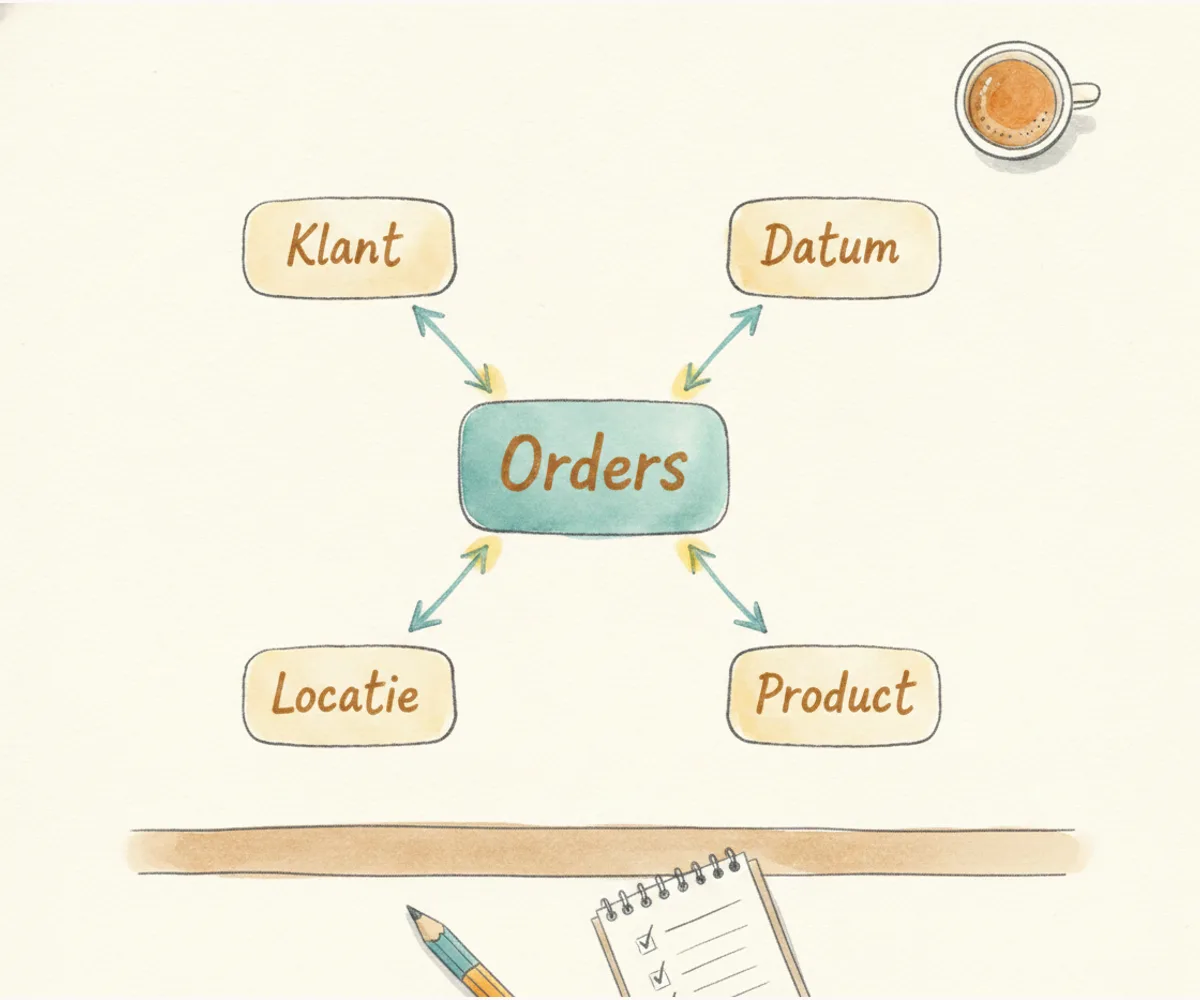
When a measure behaves unexpectedly, the problem is almost never your DAX.
That might sound like a detour, but it is a real diagnostic step: before you dive into the CALCULATE documentation or rewrite your formula for the third time, it pays to spend three minutes in the model view. Most measure problems I encounter in training are model problems in disguise. And a model problem does not go away by making the measure smarter; the fix is always one step earlier.
This article is the checklist you bring to the filter functions. Not a comprehensive guide to data modelling, but three concrete diagnostic questions to ask before you touch CALCULATE.
Why the model comes first
A measure evaluates an expression against the table that remains after the filter context has been applied. Those filters come from the visual on the canvas, from the slicers the user interacts with, and from any columns filtering the page. They travel through the relationships in your model to reach the fact table. If that path is wrong, the result is wrong, no matter how much DAX knowledge you pack into the measure afterwards.
Filter context originates in the model, and DAX works with what the model gives it. That makes the model responsible one step earlier than the measure itself.
Does my model have the shape of a star?
The fact table sits in the center, dimensions surround it (Date, Product, Customer, Region), and relationships run one-to-many from dimension to fact. That is the star schema, the approach Microsoft recommends for Power BI: filters propagate predictably, filter context stays unambiguous, and a measure that works correctly in one context does so in another.
What I see in training: everything loaded into one wide flat table, “because at least everything is in there”. That works until you start filtering. Once you put a slicer on customer, customer name and product name sit in the same row, and filter context behaves in ways that are hard to predict. A total in a sub-group diverges from the sum of the individual rows, the search goes in the wrong direction, and the cause is not in the measure.
Open the model view and check whether the fact table clearly sits at the center with dimensions around it, or whether it looks more like a flat structure. If it looks like the second, the model is where to start.
Do I have a real date table?
All time intelligence in DAX, from SAMEPERIODLASTYEAR to TOTALYTD and DATESYTD, works with a separate table that holds a continuous sequence of dates and is explicitly marked via “Mark as date table”. Microsoft built this requirement into how those functions are designed: without the marked table, results will not match what you expect.
What I see: the date column from the fact table is used as a slicer. That gives you a list with only the dates present in the data, without the continuous sequence that time intelligence needs. Year-over-year comparisons then return empty or scatter in all directions, and the hour you put into the measure does not fix it.
Check whether a separate date table exists, whether it is marked as a date table, and whether all date-related slicers connect to that table rather than to a date column in the fact table.
Which direction do my filters travel?
Power BI defaults to one-to-many for a reason: filters run one way, and filter context is unambiguous because of it. Every measure working on a fact table gets exactly the context you expect.
Bidirectional filtering can look like an easy fix when a slicer does not return the right result. In practice it makes filter context ambiguous: a filter on one dimension can then bleed into other fact tables or dimensions, performance drops noticeably, and the real problem, a missing bridge table for a many-to-many relationship or an incorrect join, stays in place. When bidirectional filtering seems necessary, it is almost always a sign that the model was already wrong one step earlier.
Look at each relationship in the model view and check its filter direction: is there bidirectional filtering active that you did not deliberately set, and which measure would benefit most once you correct that relationship?
Then CALCULATE
When the three diagnostic questions are green, CALCULATE becomes a tool: adding, removing, or replacing filters gives the result you expect. You know which filters are active, you know which direction they travel, and you know the date table is set up correctly for time intelligence.
The filter functions that follow, FILTER, ALL, REMOVEFILTERS, ALLEXCEPT, ALLSELECTED, build on the same foundation. Think of these three diagnostic questions as the checklist you bring to that series, so you are learning the syntax on a model that already works.
More material and the complete DAX series are at trainerbjorn.nl.